
Introduction to AirPods Bluetooth Pairing in 2025
Apple AirPods are among the most popular wireless earbuds, known for their seamless Bluetooth pairing and excellent sound quality. Whether you want to pair AirPods to iPhone or pair AirPods to Android devices, this complete 2025 guide covers everything you need to know about AirPods Bluetooth pairing, setup, and troubleshooting. Learn how to connect your AirPods quickly, fix common pairing issues, and get the best performance from your earbuds.
If you want to learn more about AirPods or are ready to buy the latest airpods models, please click the link below for the best deals and official products.
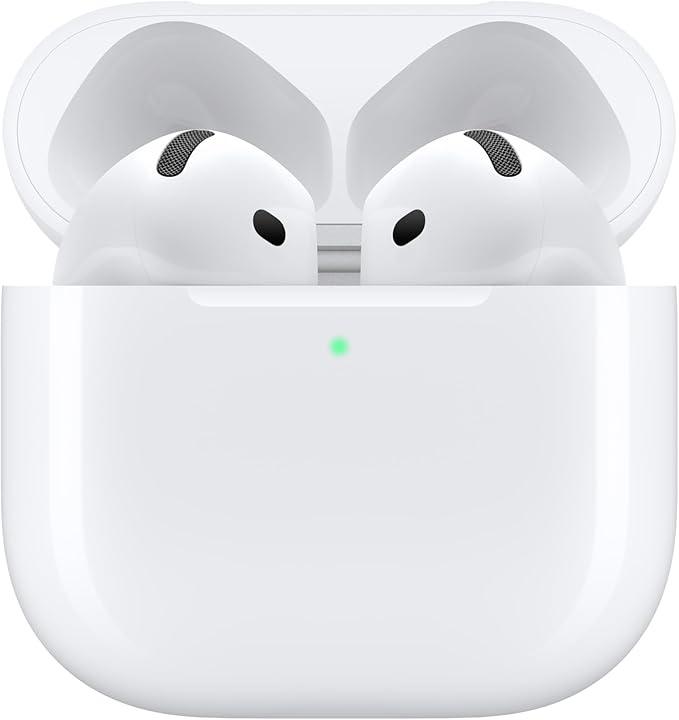
Table of Contents
Why Proper AirPods Pairing Matters
Bluetooth pairing is essential for your AirPods to work correctly with your devices. Successful pairing unlocks features like automatic device switching, noise cancellation (on AirPods Pro), and “Hey Siri” voice commands on iPhones. Poor or failed pairing can cause issues like audio cutting out, no connection, or limited functionality.
This guide will help you with pairing AirPods to iPhone, pairing AirPods to Android, and troubleshooting common problems.
How to Pair AirPods to iPhone – Step-by-Step Bluetooth Setup
Pairing AirPods with an iPhone is fast and intuitive due to Apple’s tight hardware-software integration. Follow these steps:
- Make sure your iPhone’s Bluetooth is turned on (Settings > Bluetooth).
- Unlock your iPhone and bring the AirPods case (with AirPods inside) close to it.
- Open the AirPods charging case. A setup animation should pop up on your iPhone screen.
- Tap Connect and follow the on-screen instructions to complete pairing.
- Tap Done once finished. Your AirPods are now connected and ready for use.
Looking to upgrade? Check out the latest deals on Apple AirPods on Amazon for official models with warranty.
How to Pair AirPods to Android Devices
While AirPods are optimized for Apple products, they also work with Android smartphones and tablets through Bluetooth pairing:
- On your Android device, open Settings > Bluetooth and make sure Bluetooth is enabled.
- Open your AirPods case with the earbuds inside.
- Press and hold the setup button on the back of the AirPods case until the LED light flashes white, indicating pairing mode.
- On your Android device, look for AirPods under available Bluetooth devices and tap to connect.
- Once connected, you can use AirPods like any standard Bluetooth earbuds with your Android device.
Want premium sound? Find the best deals on AirPods Pro 2 on Amazon for enhanced noise cancellation on any device.
Common AirPods Bluetooth Pairing Issues & How to Fix Them
AirPods Not Connecting or Pairing? Try These Fixes:
- Reset your AirPods: Place AirPods in the charging case, close the lid, wait 30 seconds, then open the lid. Press and hold the setup button until the LED flashes amber, then white. Retry pairing.
- Toggle Bluetooth: Turn Bluetooth off and on again on your iPhone or Android device.
- Restart your device: A simple reboot can fix minor Bluetooth glitches.
- Update software: Make sure your iPhone or Android device runs the latest OS version.
- Forget and re-pair: On your device’s Bluetooth settings, select your AirPods and choose Forget This Device, then pair again.
Tips for Better AirPods Bluetooth Performance
Keep your AirPods and paired device within 30 feet for stable connection.
Avoid interference from other wireless devices, Wi-Fi routers, and microwaves.
Regularly clean your AirPods and charging case to maintain clear connections.
Use the official Apple or certified accessories to prevent connectivity issues.
Protect your investment with AirPods waterproof cases and covers available on Amazon.
How to Check AirPods Connection Status on iPhone and Android
On iPhone: Swipe down to open Control Center and tap the AirPlay icon. Connected AirPods will appear as the active audio device.
On Android: Open Bluetooth settings, where connected devices are listed. You can also use audio controls to confirm AirPods connectivity.
Bonus: Pairing Multiple Devices with AirPods
AirPods support automatic switching between Apple devices signed into the same iCloud account. This means your AirPods can easily switch from your iPhone to your iPad or Mac without manual re-pairing.
For Android users, you’ll need to manually disconnect and connect your AirPods when switching devices.
Conclusion: Mastering AirPods Pairing for iPhone & Android in 2025
Pairing AirPods to your devices has never been easier. Whether you’re connecting to an iPhone or pairing AirPods to Android phones, following the step-by-step Bluetooth setup ensures smooth and stable connections. If you run into problems, simple troubleshooting methods like resetting your AirPods or toggling Bluetooth usually solve the issue. Keep your software updated and consider using protective cases to enhance durability.
Ready to buy your next AirPods? Explore the newest models and great deals on Amazon AirPods collection today!
Frequently Asked Questions (FAQs) About Pairing AirPods
1. How do I pair AirPods to my iPhone?
To pair AirPods with your iPhone, open the AirPods case near your unlocked iPhone with Bluetooth on. Follow the on-screen setup prompt and tap Connect. The process is quick and seamless for all AirPods models.
2. Can I pair AirPods to Android phones?
Yes! AirPods can connect to Android devices via Bluetooth. Put your AirPods in pairing mode by holding the case’s setup button until the LED flashes white, then select AirPods in your Android Bluetooth settings.
3. Why won’t my AirPods pair with my iPhone?
Common causes include low battery, Bluetooth glitches, or outdated iOS. Try resetting your AirPods, toggling Bluetooth off and on, restarting your iPhone, and updating iOS to fix pairing issues.
4. How do I reset my AirPods for pairing?
Place AirPods in the case and close the lid. Wait 30 seconds, open the lid, then hold the setup button until the LED flashes amber and then white. This resets your AirPods, ready for fresh pairing.
5. Can I pair AirPods with multiple devices?
Yes, AirPods support automatic switching between Apple devices signed into the same iCloud account. For Android or other devices, you need to manually connect each time.
6. How to improve AirPods Bluetooth connection quality?
Keep your AirPods close to your device, avoid wireless interference, keep both devices updated, and clean the AirPods and case regularly.